How to Clear Entry Records Using the On-Site Vehicle Page in TimeTec Parking System
Introduction
In a License Plate Recognition (LPR) parking environment, accurate entry and exit detection is crucial, especially for Season Parkers who register multiple vehicles under a single season pass. TimeTec Parking allows multi-vehicle registration, but only one season vehicle is allowed inside the car park at any given time.
This control prevents misuse, but it also means that any incorrect or missing exit record can cause the system to charge a valid season parker as a normal visitor. One common scenario is when the LPR camera fails to capture a season vehicle’s exit plate, and the barrier is opened manually by the operations team. Since the exit record is not logged, the system still assumes the vehicle is inside. When another registered season vehicle enters, the system will not recognize it as a season entry and will instead apply normal visitor charges.
When You Should Use the On-Site Vehicle Page
1. A vehicle was allowed to exit manually (barrier opened without scanning).
2. The LPR camera did not capture the exit plate.
3. There is a mismatch between entry and exit record for a season pass.
4. A season parker complains that the system is not recognizing their entitlement.
To resolve this, the TimeTec Parking backend includes an important function: the On-Site Vehicle page. This guide explains how to use the On-Site Vehicle page to clear outdated or incorrect entry records so that season parking access works normally again.
Process
1. Log in to TimeTec Parking LPR System > Navigate to the On-Site Vehicle Page
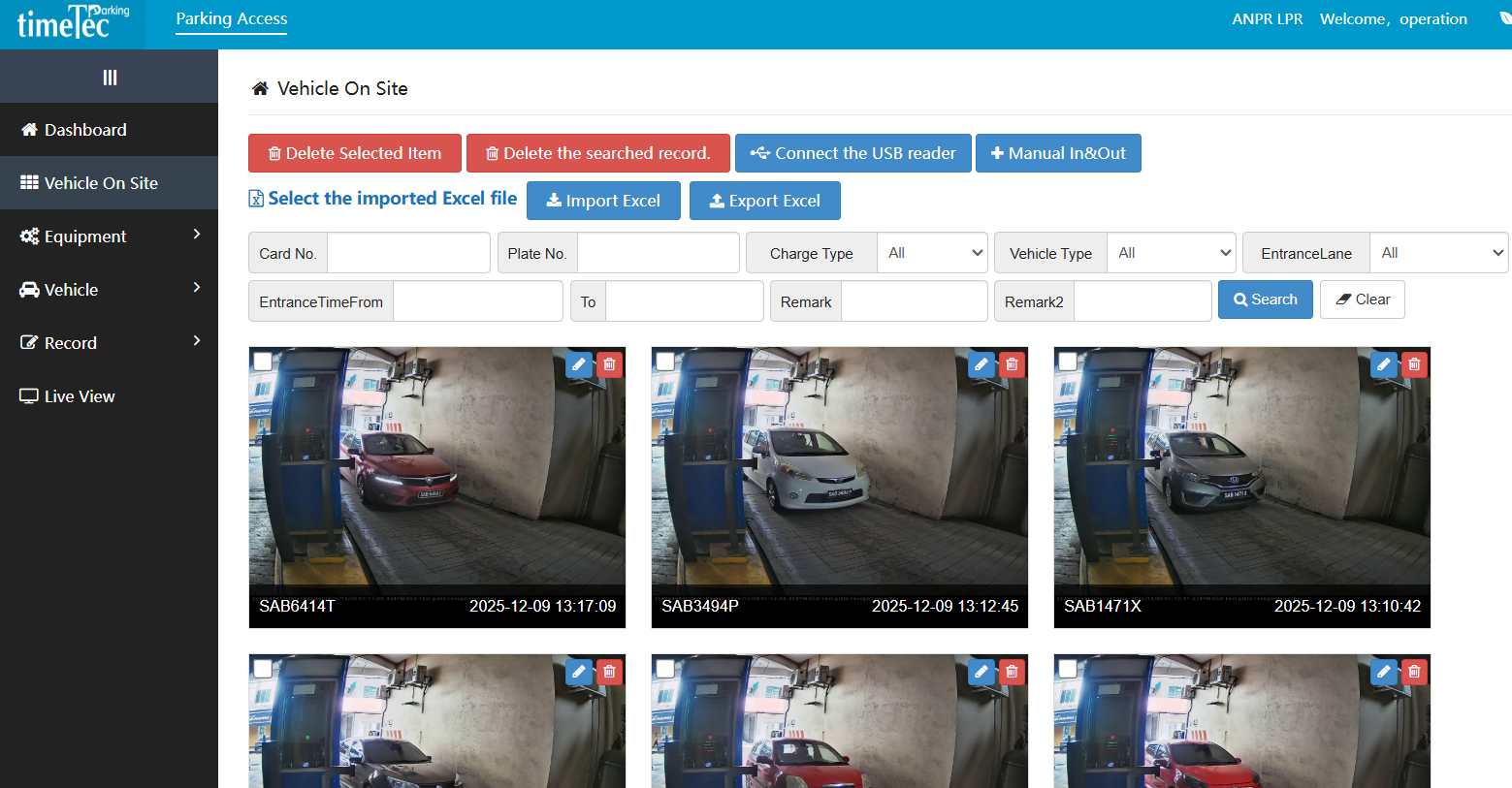
1. Log in to TimeTec Parking LPR System > Navigate to the On-Site Vehicle Page
2. Use the search bar to enter the car plate number and confirm this is the vehicle with the stuck entry record
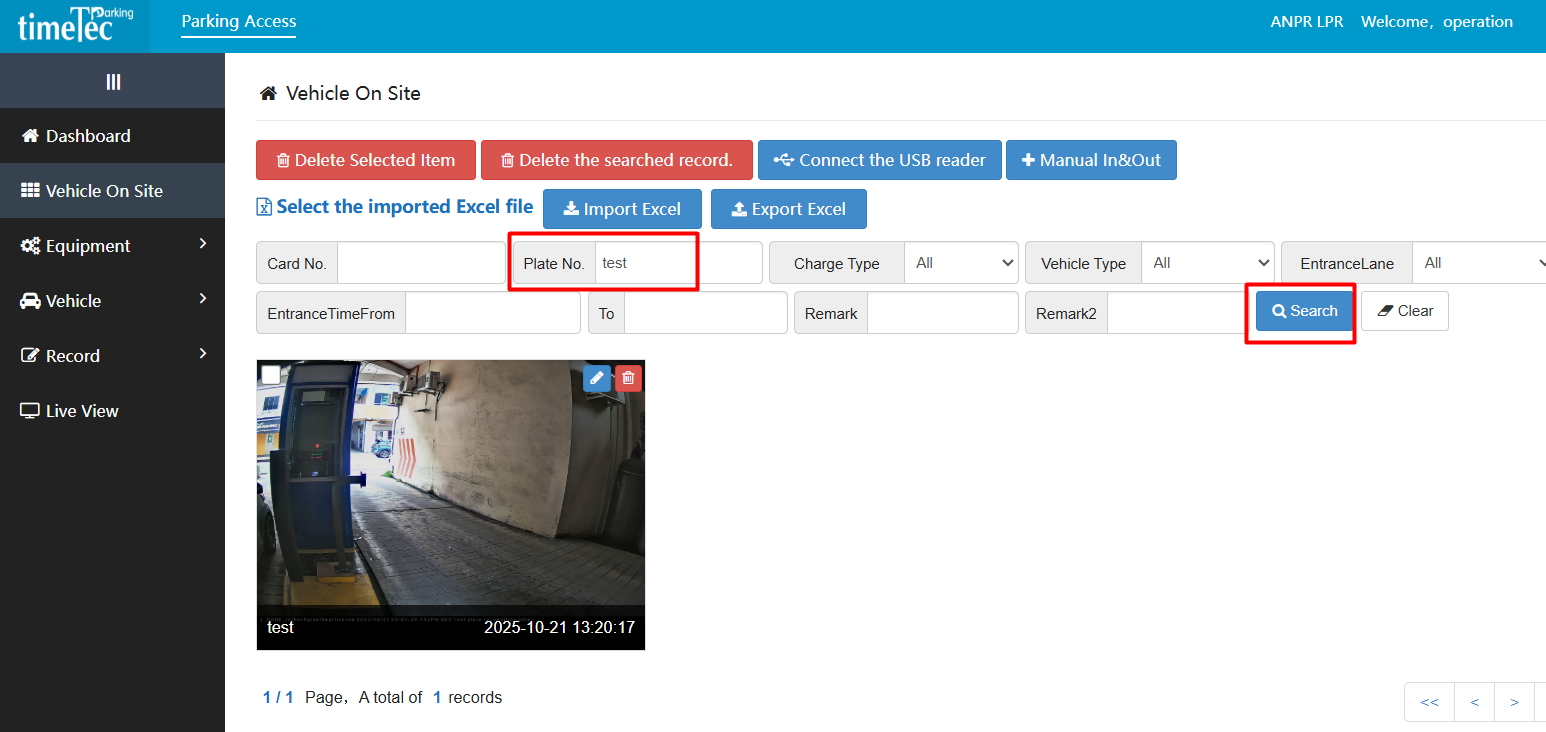
3. Click the Delete (trash icon) next to the vehicle entry and confirm the deletion when prompted.
Related Articles
Essential Site Preparation Checklist for TimeTec Parking System Installation
Introduction Ensure a smooth and efficient deployment with this comprehensive pre-installation guide for TimeTec Parking. Installing a parking system involves more than just plugging in devices. To guarantee a successful and timely deployment of ...Smart Hotel Parking: Seamless Integration with TimeTec Parking system
Introduction The TimeTec Parking Cloud System offers a secure and structured API (Application Programming Interface) designed to integrate seamlessly with hotel check-in systems or Property Management Systems (PMS). This integration enables direct ...Timetec Parking System Report Explained
Introduction The TimeTec Parking System Report provides a detailed analysis of parking operations, offering valuable insights into usage patterns, revenue generation, and overall performance. Below is a comprehensive list of reports that can be ...Understanding the Day Pass Feature in TimeTec Parking System
Introduction The Day Pass feature in the TimeTec Parking System is designed to provide flexible and convenient parking validation, particularly for guests who require temporary access such as homestay visitors. This feature ensures that vehicles are ...Manage Your Season Pass: How to Edit Your Car Plate in TimeTec Parking Apps (LPR system)
Introduction Managing your parking access has never been easier with the TimeTec Parking App. If you have a Season Pass and need to update your vehicle information, for example, after changing your car or using a different vehicle temporarily, you ...