How to Make Advance Payment via i-Neighbour App (Fiuu or iPay88)
How to Make an Advance Payment
This article explains how to make payments on i-Neighbour using Fiuu or iPay88. Advance Payment allows residents to top up their account balance for future invoices.

Prerequisite
- Advance Payment is only available when there are no outstanding (unpaid) invoices.
- If you have unpaid invoices, please settle them first before making an advance payment.
Steps to Make an Advance Payment
1. Open the i-Neighbour App and go to E-Billing.
2. Ensure the Invoices tab shows “No unpaid invoices”. Tap Advance Payment button.
3. Verify the i-Account bank account details. Enter the payment amount (RM).
4. Next, tap Pay Now. Complete the payment using your preferred payment method.
5. Tap Done. The payment receipt will be automatically generated.
How to View Advance Payment Receipt
1. Go to E-Billing > Payments tab.
2. Advance Payment Balance will be displayed at the top of the page.
3. To view the payment details, tap the relevant payment row. Alternatively, tap the document icon on the right.
4. Tap on the blue Reference No. to view or download the receipt document.
How Advance Payment Is Used
- The advance payment will be recorded as Advance for “All Charges”.
- It will be automatically offset against any newly issued invoices, including:
- Service Charge
- Sinking Fund
- Water Charges
- Late Payment Interest
Notes
- Please refer to the Refund Policy before making an advance payment.
- Advance payments cannot be applied to existing unpaid invoices.
Management Guide - How to Enable Advance Payment Setting
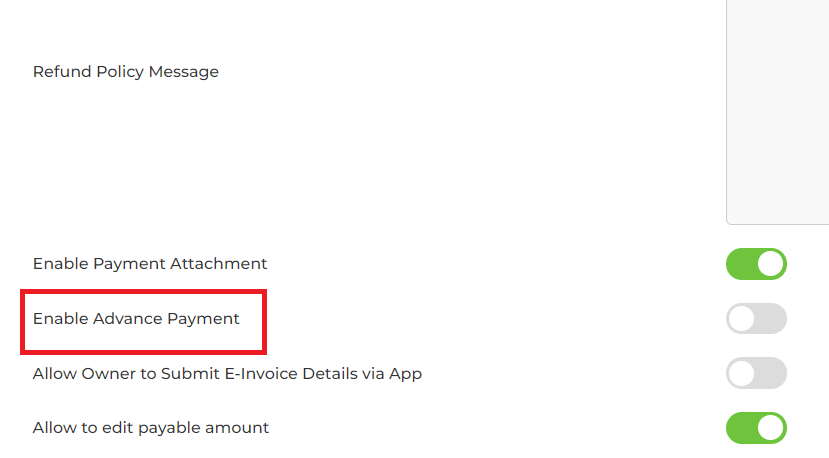
Note: This feature must be enabled by the Admin in i-Neighbour > E-Billing > Setting. It is disabled by default.
1. Log in to i-Neighbour as an Admin, then go to E-Billing > Settings.
2. Click Edit, then scroll down to the "Enable Advance Payment" setting. Enable the toggle and click the Save button to save the changes.
Additional Guide – Payment Gateway
Fiuu (Formerly Razerpay) Payment Gateway FAQ
How to View Online Payment Receipts in i-Neighbour & i-Account
Note: If some of the screenshots or steps viewed here are different from the ones in the current system, this is due to our continuous effort to improve our system from time to time. Please notify us at info@timeteccloud.com, we will update it as soon as possible.
Related Articles
How to Make Payment via i-Neighbour App
This article aims to teach users how to make payments using the i-Neighbour mobile app. 1. Click on E-Billing 2. Click on the selected invoice. 3. Owner can now view the invoice details. To get the original invoice, click on the blue invoice number. ...Fiuu (Formerly Razerpay) Payment Gateway FAQ
Fiuu (Formerly Razerpay) Payment Gateway FAQ Frequently Asked Question (FAQ) for the Fiuu payment gateway or online bill payment feature in i-Neighbour's E-Billing module. No Question Response 1. How will the payment gateway notify us when residents ...How to Make Payment via iNeighbour App (iPAY88)
This article aims to teach users how to make payments using iPay88 on I-Neighbour. Process Step 1 - Login iNeighbour app and press E-billing to view invoices Step 2 - Press “Pay Now” Step 3 - Select the invoice and insert the amount you want to pay, ...How to Make Payment via iNeighbour App (Razerpay)
This article aims to teach users how to make payments using Razerpay on I-Neighbour. Process Step 1 - Login iNeighbour app and press E-billing to view invoices Step 2 - Press “Pay Now” NOTE: For iOS version, tap on your invoice to view invoice ...Fiuu Payment Gateway – FPX B2B Payment Method & "Pending" Status
Fiuu Payment Gateway - FPX B2B Payment Method Notification & "Pending" Status Users making payments through the i-Neighbour app (E-Billing) may encounter the following messages when making a payment through the Fiuu payment gateway. FPX Payment ...